AI VIDEO GUIDE
Make short videos with ChatGPT
A practical guide to Higgsfield and HeyGen
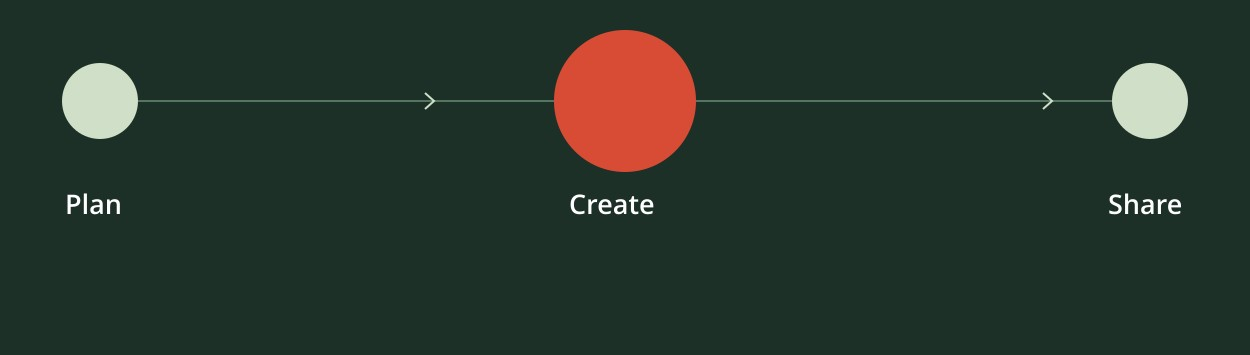
Turn one clear idea into a video you can share.
BEGINNER GUIDE / OCTOBER 2026
AI VIDEO GUIDE
A practical guide to Higgsfield and HeyGen
Turn one clear idea into a video you can share.
BEGINNER GUIDE / OCTOBER 2026
START HERE
This guide takes you from a rough idea to a video you can watch and save. Start with one simple clip, check the cost before generating, and use the copy-and-paste prompts as you go.
| Tool | What it helps you do | Simple examples |
|---|---|---|
| ChatGPT | Turn an idea into a clear plan, script, or prompt and use a connected tool. | Explain your idea, improve the wording, check the quote. |
| Higgsfield | Generate visual scenes and short clips from descriptions or supported images. | A cozy tea scene, a product close-up, an imagined setting. |
| HeyGen | Create presenter or avatar videos from a script and voice choices. | A welcome message, a short explainer, a product introduction. |
Choose one to begin. Use Higgsfield for the 10-second visual scene on pages 3-9. Use HeyGen if your main goal is a presenter speaking your words, on pages 11-12. You do not need to connect both for a first test.
A plugin or app connects an outside service to ChatGPT. A model is the engine that creates the media, such as Seedance 2.5. A skill is a reusable workflow that can come with a plugin. You do not need a separate collection of skills for the simple clip in this guide.
Connect Higgsfield · pages 3-5
Make and save the tea clip · pages 6-9
Use your own idea · page 10
Make a HeyGen presenter clip · pages 11-12
Troubleshoot and go further · pages 13-15
Official links and glossary · page 16
Tool availability and costs depend on your account. A ChatGPT subscription does not establish that either provider’s generation is included.
SETUP 01
1. Open your own ChatGPT account. On a computer, open chatgpt.com and sign in. Using a larger screen makes the setup steps easier to follow.
2. Open Plugins. In the interface shown here, it is in the left sidebar. You can also use the direct directory link below.
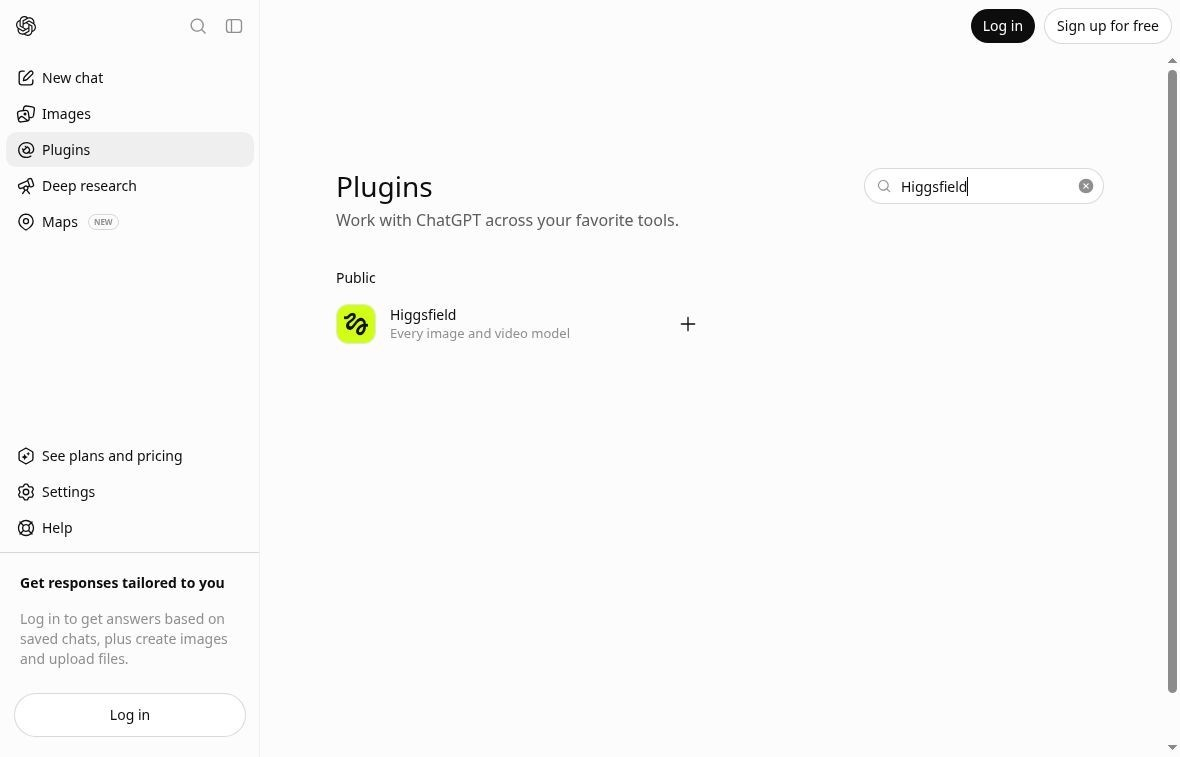
Open the ChatGPT Plugins directory
3. Search for Higgsfield. Use the search box near the top of the directory. Open the exact Higgsfield listing, then continue to the next page.
If your screen differs: plugin names, availability, and controls can vary by plan, region, workspace, and app version. Follow the current official directory and provider links. Do not install a similarly named tool to make your screen match the picture.
SETUP 02
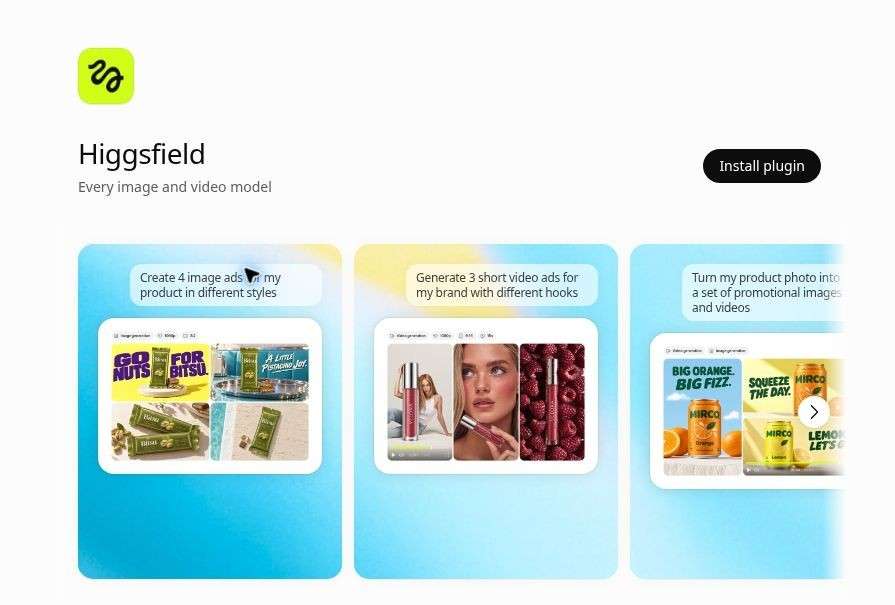
Open the Higgsfield plugin listing
4. Select Install plugin. The exact label may also appear as Add or an equivalent install control. Follow the sign-in or connection steps that appear.
5. Connect your Higgsfield account. Use the official provider sign-in screen. If you need a new account, review its terms and any plan or payment choice yourself.
6. Read the permission request. Check that it is for the provider you intended to connect. Authorize only access you understand and are comfortable granting.
Keep credentials out of the conversation. Enter passwords and payment details only in the provider’s secure screens. You do not need terminal commands, an API key, or a manually pasted server address for this normal ChatGPT plugin route.
Installing a plugin and signing into its service are separate steps. Neither action, by itself, confirms that your account has the allowance for the video you want to make.
SETUP 03
After installation, start a new ChatGPT conversation so the newly installed capabilities can load. Type @ and select Higgsfield if it appears in the picker. Otherwise, name Higgsfield explicitly in your request.
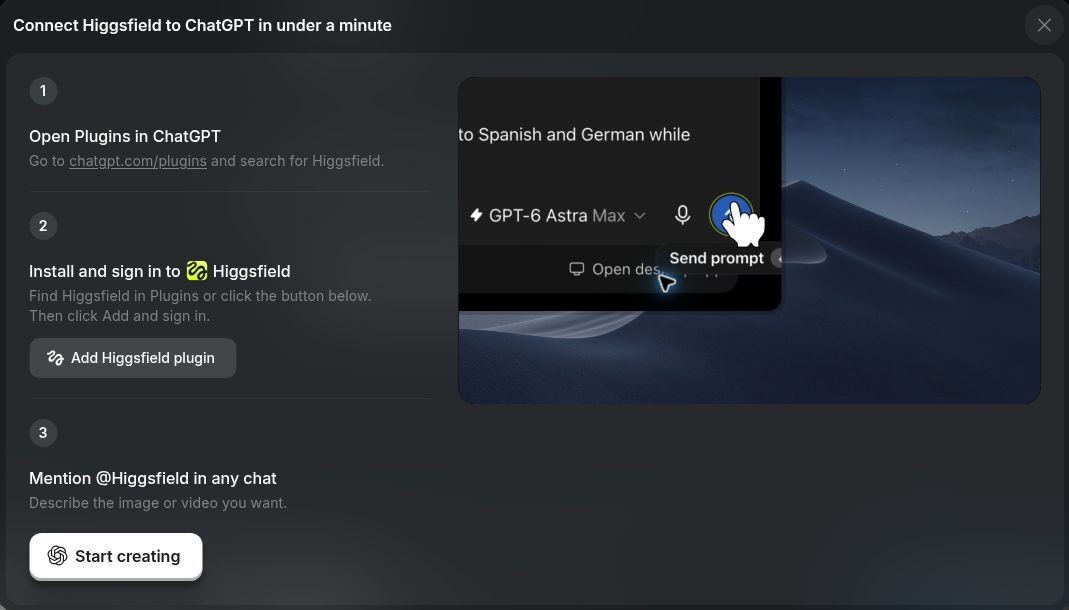
COPY AND PASTE 1 CHECK WITHOUT GENERATING
Use the connected Higgsfield tools to check whether my account is connected and video generation is available. Check my credit balance or available allowance, and whether Seedance 2.5 can make one 10-second vertical 9:16 video at 720p. Do not generate, upload, buy anything, or start a subscription. If you cannot check something, say so rather than guessing.
You should receive an actual account or tool check and any connection, settings, or allowance problem. A confident paragraph alone does not prove the connection works. If sign-in is unfinished, complete it and try this check again. If the plugin is unavailable, use the website route on page 9.
MAKE THE CLIP 01
Keep your first request simple. The tea example has one subject, one scene, and gentle movement. This makes the result easier to judge and reduces the temptation to pay for repeated fixes.
COPY AND PASTE 2 ASK FOR THE PLAN
Plan my first Higgsfield video. Make it one continuous 10-second vertical 9:16 shot. A plain white ceramic cup of tea sits on a wooden table beside a window in warm morning light. Thin steam rises naturally. A pale linen curtain moves very slightly in the background. The camera moves slowly toward the cup. The feeling is calm and cozy. No people, hands, logos, words, subtitles, voiceover, or music. If the selected model supports sound, use only subtle room ambience and faint birds outside. Give me a short visual plan and the exact generation prompt. Do not generate yet.
Ask for changes while you are still editing words. Remove any added people, brand names, extra scenes, voiceover, or captions before approving the creative plan.
ChatGPT may improve the wording. This is a usable starting point for the actual generation field, including the website fallback on page 9.
CREATIVE PROMPT USE THIS TO DESCRIBE THE VIDEO
10-second vertical 9:16 photorealistic video. One continuous calm shot of a plain white ceramic cup of tea on a wooden table beside a window, soft warm morning sunlight. Thin natural steam rises. A pale linen curtain moves very gently in the background. Slow smooth camera push toward the cup. Subtle movement, stable cup shape, cozy quiet mood. No people, hands, logos, lettering, subtitles, scene cuts, or sudden camera movement. Audio: subtle indoor ambience and faint birds outside; no dialogue, narration, or music.
A creative prompt is an instruction to the model, not a guarantee that every detail will be exact. Seedance 2.5 supports short vertical video and generated sound, but check the settings actually available to your account.
MAKE THE CLIP 02
Generation may use paid credits or an eligible allowance. Check this specific request before spending. Do not assume that a free or unlimited label covers every model, setting, or account route.
COPY AND PASTE 3 ASK FOR THE COST FIRST
The creative plan is approved. Before generating, check the current Higgsfield cost for exactly ONE video using the approved prompt: Seedance 2.5, 10 seconds, 9:16 vertical, 720p, with the approved ambience if supported. Show the model, duration, resolution, number of outputs, estimated total credits, which balance or allowance will be used, and any account restriction. Do not submit the generation yet. Do not add an upscale, extra versions, a subscription, or a credit purchase. If these settings are unavailable, propose one alternative and wait.
| Check | For this practice clip |
|---|---|
| Model and settings | Seedance 2.5, 10 seconds, vertical 9:16, 720p |
| Quantity | Exactly one output |
| Cost and payment source | A stated credit total or clearly labeled estimate, plus the balance or allowance used |
| Extras | No upscale, additional versions, credit purchase, or subscription |
If the cost is unclear, do not approve yet. If it is too high, ask for one shorter or lower-resolution option, its trade-off, and a fresh quote.
COPY AND PASTE 4 ONLY WHEN THE QUOTE IS ACCEPTABLE
I approve exactly one 10-second, 9:16, 720p video using Seedance 2.5, the approved prompt, and [named balance or allowance], for no more than [quoted amount] credits. Generate that one video now. If the cost or settings change, stop and ask. Do not generate extra versions or buy credits.
Replace both bracketed parts with the actual quote. If you approved a different model or setting, update those words too. Read any confirmation card before accepting it; it should match your choice.
A prompt is not a bank-enforced spending limit. Review any automatic refill setting yourself. A retry, edit, new version, or upscale can create another charge. You can stop at this page and keep your plan without buying anything.
MAKE THE CLIP 03
After you approve, the generation may be queued, running, complete, or failed. Allow time for the job to finish. A thumbnail or storyboard is not the playable finished video.
IF IT SEEMS SLOW CHECK THE EXISTING JOB
Check the status of the video job you already submitted. Do not submit another generation. Tell me whether it is queued, running, complete, or failed, and show the existing result when ready.
Avoid sending “generate it” again because the first reply is slow. If a request times out, establish whether a job already exists before retrying. If it fails, check the charge or refund record rather than assuming the attempt was free.
Watch once with sound and once without sound. Use this quick checklist before paying for any changes.
COPY AND PASTE 5 QUOTE ONE REVISION
Keep the current video as version 1. The only problem I want to improve is [for example: the camera moves too fast]. Suggest the smallest change that would help. Tell me whether you can edit this existing clip or would need a new generation, and show the extra cost. Do not change anything or spend credits yet.
Approve only the revision and cost you want. Regeneration can alter details you liked in the first version, even if you ask to preserve them. If the clip is good enough for practice, save it and move on.
MAKE THE CLIP 04
1. Open the completed playable result. Use its Download control or the available download option in the result menu. Labels can vary.
2. Save it somewhere easy to find. For example, create a folder named First AI video and save the clip as Morning-tea-v1. Keep the approved prompt with it.
3. Play the downloaded file outside the chat. Watch from beginning to end. This checks that you saved the video itself, rather than just a thumbnail or a web link.
4. Check sound and any watermark. If a format choice is offered, MP4 is practical for sharing. Do not rename another file extension to .mp4.
If the download is missing or broken: sign into the same Higgsfield account on its website and open Assets. Find the generation by its thumbnail, creation time, or job ID, open it, and use the available download or export option.
Do not request a paid upscale just to save the version you already made. Watermark rules depend on the account or plan; an upgrade does not necessarily change an existing file.
You can use ChatGPT to prepare the plan and creative prompt, then generate on Higgsfield’s website. The website’s live options and prices are the ones to check.
1. Open higgsfield.ai and sign in. Open Video and select Seedance 2.5 if your account offers it.
2. Paste the creative prompt from page 6. The website prompt field describes the picture. Do not paste ChatGPT instructions such as “check my balance” there.
3. Choose the supported settings. Set 10 seconds, 9:16 vertical, 720p, one output, and the planned audio if available.
4. Review the actual cost on screen. If the settings or price differ, decide before continuing. A model name in a guide does not override your account options.
5. Generate once, then wait. Open the completed result, review it using page 8, and save it using the steps above.
YOUR NEXT CLIP
You do not need technical language. “A calm, cozy morning” and “the camera slowly moves toward the cup” are useful directions. Begin with one subject and one main action.
COPY AND PASTE 6 LET CHATGPT HELP YOU CHOOSE
Help me turn a rough idea into one simple 10-15 second video. My idea is: [describe it in everyday words]. Ask up to five short questions about who it is for, what we should see, the mood, whether it needs speech, and where I will share it. Then suggest one easy concept and a plain-English brief. Keep the first version to one scene. Plan only; do not generate or spend credits.
Replace the square brackets. It is fine to write “none” for sound, text, or reference images. If you are unsure of a setting, ask for a recommendation rather than guessing.
COPY AND PASTE 7 USE YOUR OWN SUBJECT
Help me plan one short video using the connected Higgsfield tools.
Purpose and audience: [what this is for and who will watch].
Main subject: [the person, object, animal, or place].
One action: [what happens].
Setting and mood: [where it is and how it should feel].
Look: [realistic, illustrated, or another clear style].
Camera: [still, or one simple movement].
Length and shape: [10 seconds, vertical 9:16, or ask for advice].
Sound and speech: [none, ambience, or exact approved words].
On-screen words: [none, or exact text].
Must avoid: [unwanted objects, claims, logos, or effects].
Reference image: [none, or an image I own and authorize for Higgsfield].
First give me a simple visual plan and exact prompt. Check which connected tool and settings can do it. Then quote one test and wait for my approval. Do not generate, upload a reference, buy credits, or start a subscription yet.
If you use a reference image later, say exactly which image may be sent to Higgsfield and why. Uploading a photo into ChatGPT may not complete the provider’s upload step. Confirm the intended image is attached to the actual generation request. Use only images you own or are allowed to use.
PRESENTER ROUTE 01
Choose this route when you want a presenter to speak a short script. HeyGen is a separate service from Higgsfield, with its own account and allowance. Start with a stock avatar and a standard voice; you do not need to record yourself or clone anyone.
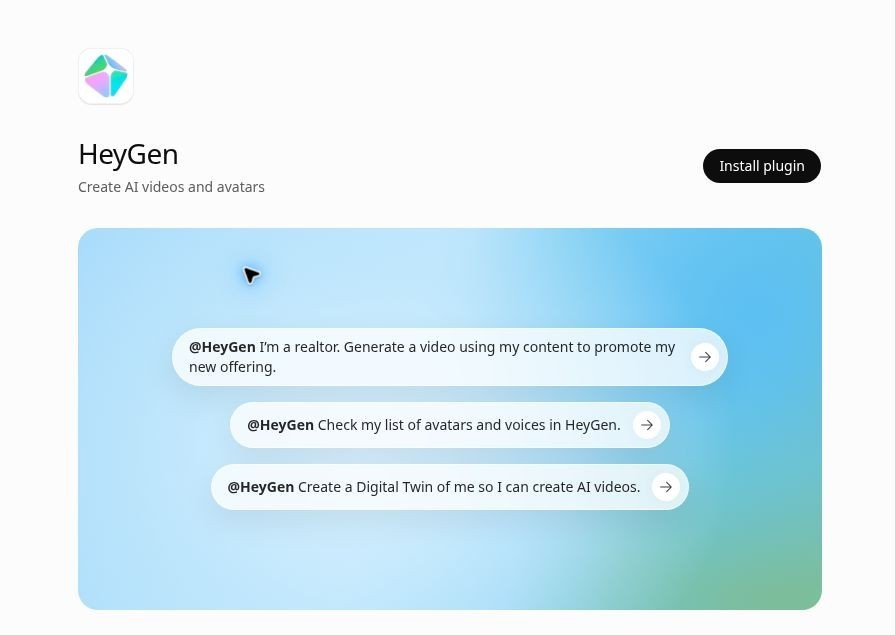
Open the HeyGen plugin listing
1. Find the HeyGen listing in Plugins. Open it, review the developer, and select Install plugin if you choose to use it. Follow the provider sign-in and permission prompts.
2. Start a new chat. Select @HeyGen if it appears, or name HeyGen in your request. Keep passwords and payment details out of the conversation.
COPY AND PASTE 8 CHECK HEYGEN WITHOUT GENERATING
Check whether my connected HeyGen account can create a short vertical talking-presenter video using an available stock avatar and a standard voice. Tell me what is included in my account and what credits or allowance a test may use. Read-only check only; do not generate a video, create a custom avatar, upload a face or voice, or buy anything.
If the account does not connect or the capability cannot be checked, stop and fix that first. You can prepare the script without making a video.
PRESENTER ROUTE 02
For this first test, use one stock adult avatar, one voice, and one short message. Check the words and the account’s current choices before approving a render.
COPY AND PASTE 9 PLAN A SHORT PRESENTER TEST
Plan one simple approximately 15-second vertical 9:16 test video in HeyGen. Use one stock adult avatar, a plain background, and a friendly standard English voice. Suggest an available avatar and voice by their actual names. The exact spoken script is: “A good short video starts with one clear idea. Keep the message simple, watch the result, and change one thing at a time.” Use no extra scenes, music, or captions for this test. Show the plan, approximate speaking time, and cost or credit estimate. Wait for my approval before rendering.
Natural speech may not fit exactly 15 seconds. If the tool proposes a different duration, decide whether it works for you. Do not rush the words just to force an exact length.
COPY AND PASTE 10 APPROVE AFTER REVIEWING THE QUOTE
I approve one HeyGen test video with the avatar [name], voice [name], script and format we reviewed, using [named balance or allowance], for no more than [quoted amount] credits. Render that one video. Stop if the settings or cost change. Do not create additional versions, custom avatars, or paid add-ons.
Replace every bracketed part. Read any separate confirmation before approving. If the cost cannot be quoted reliably, review the actual provider charge before proceeding.
Check the spoken words, pronunciation, mouth movement, framing, sound, and ending. Download the completed video through its available result controls. For advanced changes or export options, open the matching project on HeyGen’s site. Limits depend on your account.
Open the saved file outside ChatGPT and play it fully. To revise, say: “Keep version 1. I want to change only [the specific problem]. Explain the fix and any extra credit cost before making it.”
Do not upload or clone another person’s face or voice without permission. For this practice clip, a stock avatar and standard voice are enough.
TROUBLESHOOTING 01
A plan may be complete while generation has not started. Ask: “Was an actual video job submitted? If yes, show its status and result. If no, tell me what connection or approval is missing. Do not submit a new job.”
Finish the provider sign-in, start a new chat, and select or explicitly name the relevant provider (Higgsfield or HeyGen). Installation and account authorization are separate. A managed work account may also restrict available tools.
Use the exact provider name in the current ChatGPT directory. Open the official Higgsfield connection page from the source links on page 16. Do not paste unknown code or install a similarly named tool. If the plugin is unavailable, use the website route on page 9.
Ask it to perform the read-only connection check on page 5. A generated description of a button or capability is not proof it exists. Stop if the connection cannot be verified.
A USEFUL DIAGNOSTIC REQUEST
Help me diagnose this connection problem: [paste the error message without passwords, payment details, or private information]. Check the existing connection and tell me the smallest next step. Do not install a different tool, change permissions, submit a video, or spend credits while diagnosing it.
Take one step at a time. After changing a connection or completing sign-in, repeat the read-only access check before returning to the generation prompt.
TROUBLESHOOTING 02
Stop and review your account options and budget. You can finish planning without purchasing. Check whether any offer applies to this exact model and route. Avoid a vague “continue” if the next step could buy credits or start a subscription.
Check the existing job’s status before retrying. Look in Higgsfield Assets for the same generation. If it failed, check its charge or refund record and the provider’s troubleshooting help. Do not assume another attempt will be free.
Check the actual output and what settings the model accepted. Ask for a diagnosis and quote before a replacement. Models support different duration, resolution, and aspect-ratio options.
Check claims, wording, products, recognizable people, and any brand details yourself. Generated images and speech can invent or distort details. Fix the brief and approve only the specific correction you need.
A USEFUL DIAGNOSTIC REQUEST
Review the problem with my existing video: [describe the issue]. Check the submitted settings and current job status first. Explain whether the problem needs a setting change, a small edit, or a new generation, and quote any extra cost. Do not retry or make changes until I approve.
Keep the first version and its prompt until you know the replacement works. If a job or payment status is unclear, resolve that before submitting another attempt.
AFTER THE FIRST SUCCESS
Describe the idea. Review the plan. Check the quote. Approve one test. Watch the actual result. Save the actual file. For a second practice clip, change just the subject: a plant by a sunny window, rain on a café window, or a candle on a table.
Keep the final prompt, accepted settings, and output together. A small record of what worked is more useful than repeatedly starting from an empty chat.
Several scenes, narration, music, and captions need an assembly step as well as generation. Ask which connected tools can combine the pieces and export one finished video before paying to create them. Several completed clips do not automatically become one edited MP4.
COPY AND PASTE 11 PLAN THE NEXT LEVEL
I have finished one short clip. Help me plan a 20-30 second video with three simple scenes about [topic]. Show the exact spoken words, scene lengths, and where text would appear. Identify which connected tools can create and assemble it, and what would need a separate editor. Quote before generating. Do not start until I approve the plan and budget.
One small clip that you can find, play, and explain how you made. Once that works, you can add one new feature at a time, such as a reference image, a spoken sentence, or a second scene.
REFERENCE
Screenshots show real public setup pages captured on 7 October 2026. The signed-out directory screens illustrate where to find the tools; your account’s setup, available models, costs, and export controls can differ. Check live settings before spending.
Verification scope: official guidance, public setup pages, and available read-only capabilities were checked. No practice video was generated.
ChatGPT Plugins guide Installation, external account connection, and starting a new chat.
ChatGPT Plugins directory Find the current Higgsfield and HeyGen listings.
HeyGen ChatGPT app Presenter videos, account access, and conversational revision.
HeyGen integration walkthrough Integrated creation and advanced editing or export on HeyGen.
Higgsfield connection page Provider setup overview and ChatGPT plugin entry point.
Generate AI videos from ChatGPT Higgsfield’s integrated workflow and result access.
Seedance 2.5 Model capabilities and prompting guidance.
How Higgsfield credits work Credit usage and account-dependent generation costs.
Create a first Higgsfield generation Website generation flow and Assets.
Stuck or failed generations Provider troubleshooting for incomplete jobs.
Watermarks and removal Plan-dependent watermark guidance.
| Word | Plain English |
|---|---|
| Prompt | The instructions you give the AI. |
| 9:16 | A tall, vertical picture shape often used for short-form video. |
| 720p | A video resolution. Higher resolution is not automatically needed for a first test. |
| Credits | Units the provider may charge for generating or editing media. |
| Render or generation | The process that turns the request into a playable video. |
| Upscale | A separate step to increase resolution; it can cost extra. |
| Assets | Higgsfield’s area for previously generated media. |
| MP4 | A common video file format suitable for sharing. |
The prompts in this guide are reusable starting points. Always judge the actual result and current account controls, rather than relying on a tutorial’s screen or a confident AI reply.